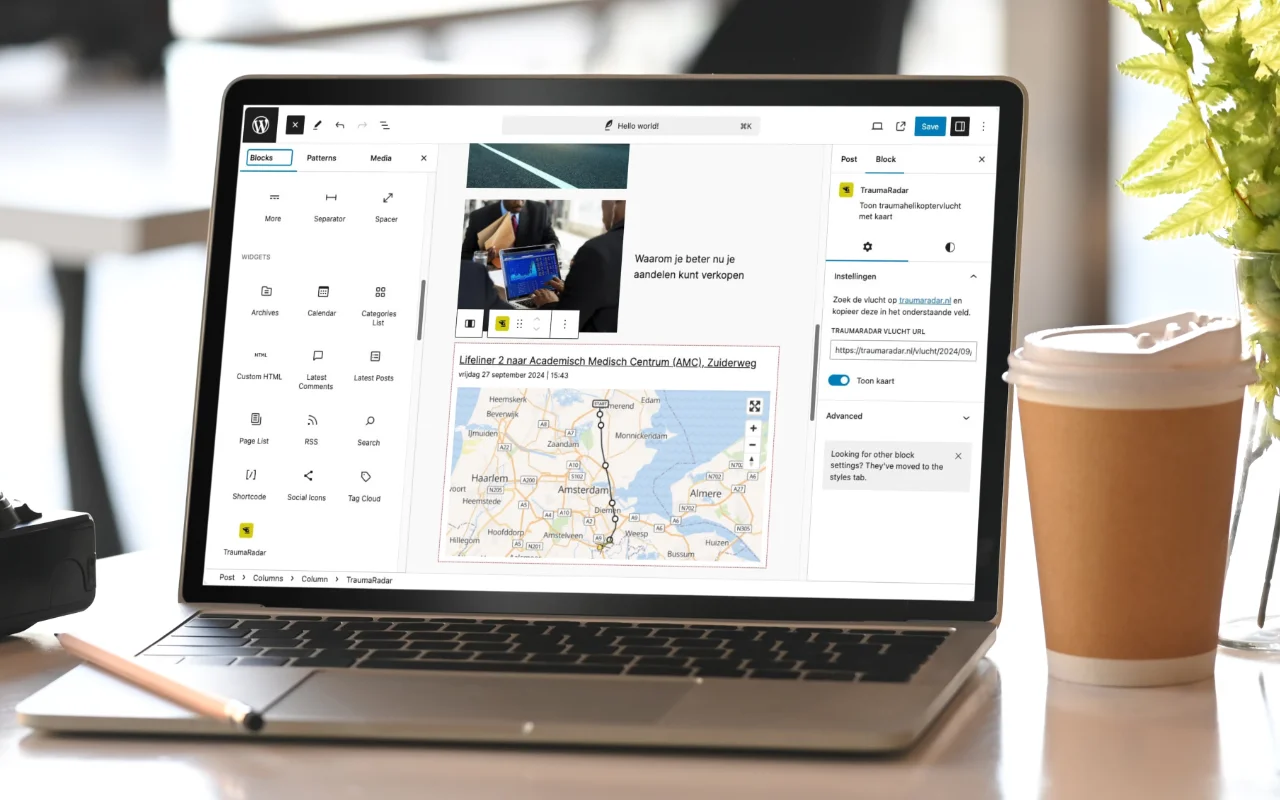
Integrate Helicopter Flights into Your Website!
Would you like to display the flight routes of trauma, ambulance, police or coastguard helicopters on your website at a glance? With the widget, you can easily show helicopter flights to your visitors and link directly to detailed flight information. You only need to add 2 lines of HTML to make the widget available on your website.

Why the TraumaRadar Widget?
🚁 Real-time Helicopter Flights: Display flight routes of various emergency services, such as trauma, ambulance, police and coastguard helicopters.
🛰️ Map: Give your visitors access to the map with flight tracking of helicopters over the Netherlands.
🔗 Direct Link to TraumaRadar: Click through for detailed flight information on traumaradar.nl, including flight data, routes, and more!
📱 Fully Responsive: The plugin works on both desktop and mobile devices, so everyone can follow the flights, wherever they are.
🎨 Easily Customisable: Adapt the display to your preferences! Simply configure which components should be visible and which should not.
Key Features
- Real-time Map Display: Add an interactive map to your page or widget with current flight information.
- Widgets: Use the handy widget to display flights in the sidebar, footer or anywhere else on your website.
- Detailed Information: Visitors can click through on the map for more flight information.
How Does It Work?
- Add Widget Source Code: Place a script tag in your website or page. Further down this page, in the step-by-step guide, we explain exactly how to add the widget.
- Make Space for One or More Widgets: Determine where the widget(s) should appear on your website.
- Place the Widget: Add a widget code to your website.
- Configure the Widget: Determine how the widget should look.
- View Helicopter Flights!: Let your visitors view the helicopter flights, directly on your website.
Examples of Use
This widget is ideal for:- News Sites: Keep visitors informed about emergencies and major incidents with live flight routes.
- Municipal and Regional Websites: Display relevant information about local emergency services and their flights.
- Emergency Services Enthusiasts: For websites focused on emergency services, safety and real-time incident information.
Step-by-Step Guide
Step 1: Place the Widget Source Code
Open the HTML page of your website in an editor and add the following code at the bottom, just above the </body> element:
<script src="https://rescueradar.co.uk/api/widget/widget.js"></script>
Step 2: Place the Widget
Add the following HTML code where you want the widget to be displayed:
<div data-trauma-heli-widget data-flight-id="89104" data-show-map="true" data-show-track="true"></div>
Step 3: Configure the Widget
You can use the attributes data-show-map (the flight map), data-show-track (the flight route) to determine which images you want to display. If you don't want to show an item, set the value to false. Furthermore, you can determine whether you want to show a specific flight or the most recent flight. Below is an overview:
data-flight-id |
You can display the most recent flight or a specific flight. Set the value to 0 if you want to display the most recent flight. If you want to display a specific flight, set the value to the flight ID. You can find the flight ID on the flight page. Press CTRL+D twice. A popup will then appear in the top right with the flight ID. You can also find the ID in the link of the flight page. |
data-show-map |
true to display the map, otherwise false |
data-show-track |
true to display the flight route, otherwise false |
<!DOCTYPE html>
<html lang="en">
<head>
    <meta charset="UTF-8">
    <meta name="viewport" content="width=device-width, initial-scale=1.0">
    <title>Trauma Helicopter Widget Examples</title>
</head>
<body>
    <div data-trauma-heli-widget data-flight-id="0" data-show-map="true" data-show-track="true"></div>
    <script src="https://rescueradar.co.uk/api/widget/widget.js"></script>
</body>
The result for your visitors looks like this:
Frequently Asked Questions (FAQ)
1. Is the widget free to use?
Yes! The widget is completely free.
2. How current is the flight information?
The information is real-time, directly from the flight radar. As soon as a flight is detected on our website, you can add it to your website.
3. Can I select a specific helicopter flight?
Yes, you do this by looking up the flight on our website and copying the ID from the URL (link). You can also find this ID by going to the flight page and pressing CTRL+D twice. This applies to all flights we have available, such as trauma helicopters, police or coastguard flights.
Today


Helicopter flights on your website?
You can easily display helicopter flights on your own website. Use the embed code.